Laptop Instructions
Important Advice to Avoid Issues
Download a pdf version for printing
Getting Started
The first thing to do when you receive your new laptop is
Connect it to your WiFi and set a laptop login password & Pin if it doesn’t already have one.
Printers can only be set up when they are in the same building - contact us for assistance.
General Usage Guidelines
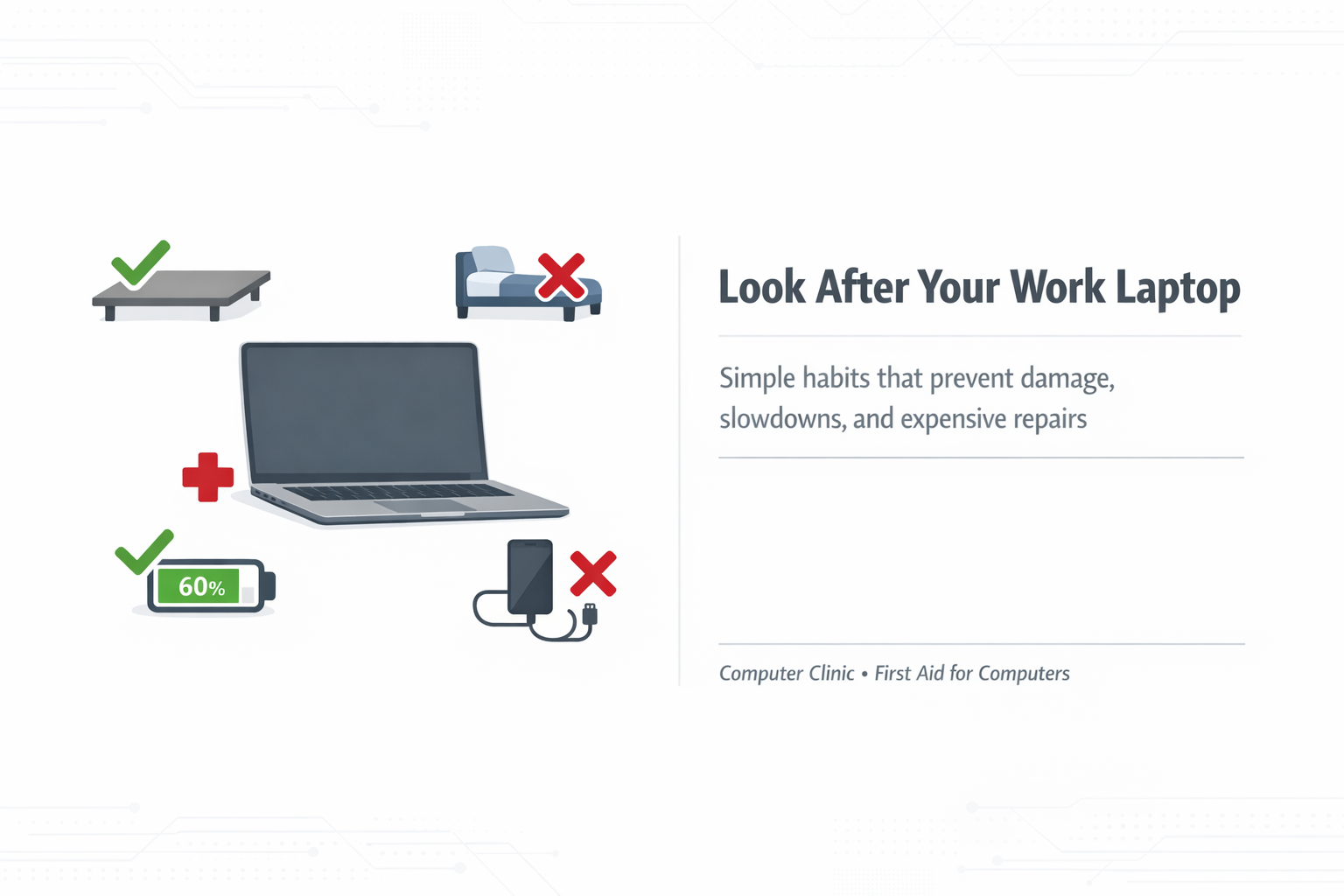
Always use your laptop on a flat, hard surface so it can cool properly.
Never use it on a bed, carpet, or fabric surface as this blocks vents.
Keep vents clear at all times to avoid overheating
Do not cover your laptop with paperwork as this blocks heat from escaping
Do not place objects underneath the laptop as this blocks heat from escaping
Don’t leave your laptop in direct sunlight as this will cause it to overheat
N.B. The hotter your laptop gets, the slower it will operate
Do not leave your laptop on the floor for all the above reasons plus avoid kicking it
Never move or transport your laptop with the charger plugged in as this can snap
Important Battery & Charging Advice
Do not charge your mobile phone from your laptop.
Never ever let your battery run completely flat as it may not turn on again
Aim to keep battery levels between 20% and 80%.
N.B. Leaving your laptops always on charge will degrade the battery
Always connect to power during Windows updates, otherwise they could corrupt
Turn off your laptop completely when transporting or not being used over the weekend.
Restarting & Troubleshooting
Restart your laptop at least once per week. This will clear any bugs and maintain the performance of your laptop. Restart the laptop first if you experience any issues. Holding the power button down for 3 seconds will force shutdown if required.
Shutting Down Correctly
Do not close the lid until the laptop is fully shut down. What to look for - Wait until all lights are off around the side of the laptop before closing the lid. The screen turning off does NOT mean the laptop is off, so wait for all the lights first before closing the lid. Otherwise, Windows operating system could corrupt and problems will arise.
Windows Updates
Always connect to power when updates are running. Do not close the lid during updates. Allow updates to complete fully to prevent system damage. Never turn off your computer during updates or transport it. Otherwise, Windows operating system could corrupt and problems will arise.
Handling & Physical Care
Be careful when connecting or removing the laptop charger. Do not bend or pull or push your charger at an angle as there are 24 tiny pins that connect so are easily damaged. Also avoid strains on charging cables. Keep the device in a stable location to prevent any damage or knocking or stretching the cable.
Security & Usage Restrictions
Do not sign into the laptop using a personal Microsoft account. This is a work device containing confidential information. Only authorised users may access the laptop. Other users must use a separate guest account if they must use your laptop for any reason.
Summary
Keep battery between 20%–80%
Unplug charger before moving the laptop
Do not close lid until fully shut down
Ensure proper ventilation
Restart weekly
Do not charge your phone from the laptop
Do not interrupt Windows updates
Do not use personal Microsoft accounts
Do not allow unauthorised users to use the laptop
Detail Behind the Instructions
Battery Care
Modern laptop batteries are sensitive to being fully discharged. Letting the battery run flat regularly can cause permanent damage and may even prevent the laptop from starting. To extend battery life and maintain reliability, keep the charge between 20% and 80% where possible.
Charging Safety
The charging port is connected directly to the motherboard and can be easily damaged if the laptop is moved while plugged in. This can cause internal damage, often requiring a new motherboard which is an expensive repair. Accidental damage is not covered by warranty. Therefore, always unplug the charger before moving or transporting your laptop.
Proper Shutdown Behaviour
Closing the lid puts the laptop into sleep mode, not shutdown. This continues to use battery power and may drain over time. Always shut down properly and wait until the laptop is fully off before closing the lid.
Ventilation
Laptops rely on airflow to stay cool. Using them on soft surfaces like beds or couches will block vents and cause overheating, leading to slow performance and possible damage. Always use your laptop on a hard, flat surface and ensure its vents are not blocked.
Phone Charging Warning
Laptop USB ports are not designed to safely charge phones. Doing so can strain or damage internal components and reduce battery life on both devices. Use a proper wall charger instead. This is because modern phones require a high current which laptop cannot supply.
Docking Station Usage
Not all ports on a docking station provide adequate power for charging. Using the wrong port or a lower powered docking station may result in poor performance or strain on the device. Only use designated charging ports, an approved dock or a dedicated charger.
Conclusion
Following this advice will help prevent avoidable issues, reduce downtime, and keep your laptop operating efficiently plus last longer! If you would like anything clarifying, please get in touch:
Contact Information
Computer Clinic
Ferrymead
Christchurch 8023
Phone: 03 390 9192
Email: hello@computerclinic.nz Website: www.computerclinic.nz